Gmail Integration
Gmail ticketing system for eCommerce customer support
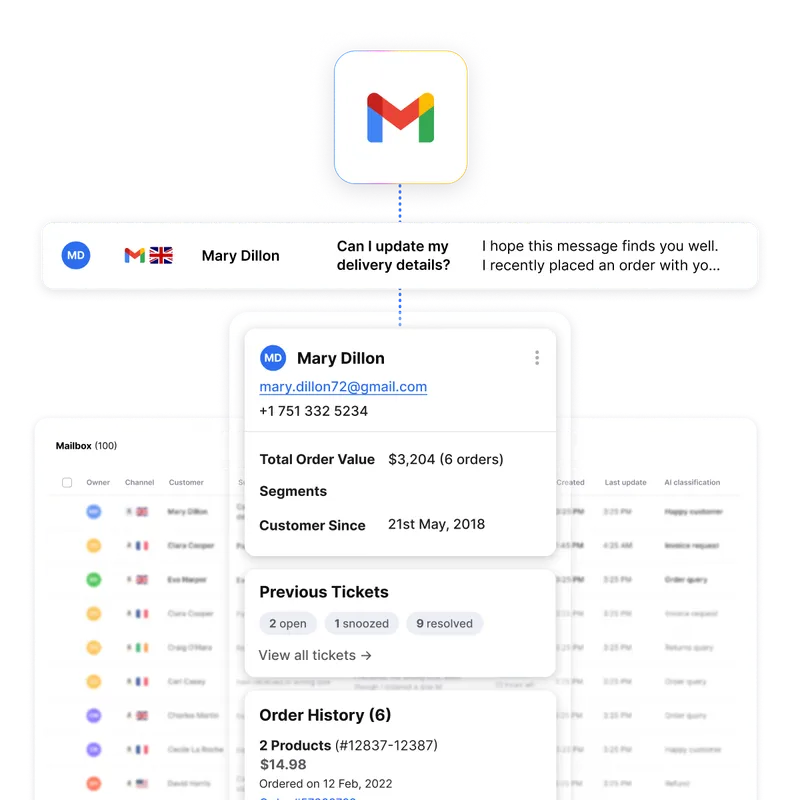
eDesk gives online sellers a Gmail ticketing system. Connect your Gmail account directly through Google authorization and buyer emails arrive as tickets in your eDesk Mailbox, shown with order details. It is built for sellers outgrowing a shared Gmail inbox. This page covers what syncs, how folder selection works and how to connect.
Trusted by leading eCommerce brands
- 4.8 out of 5Shopify App Store

- 4.5 out of 5G2

- 4.4 out of 5Capterra


What the Gmail ticketing system does in eDesk
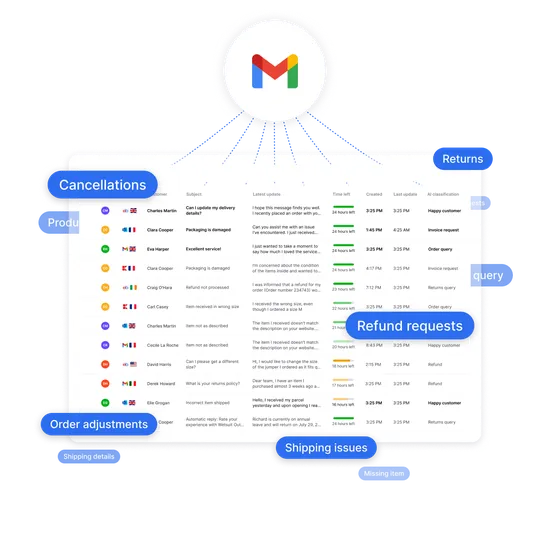
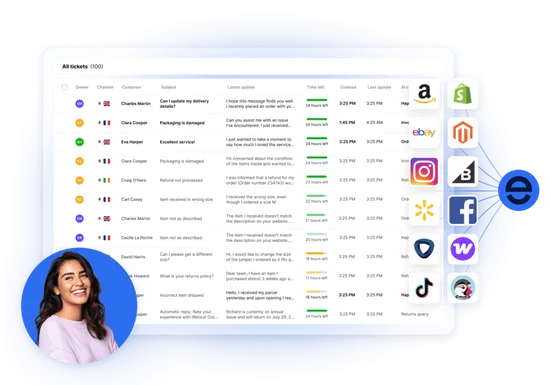
Once Gmail is connected, emails from the folder you chose appear in the eDesk Mailbox as tickets, and your emails keep arriving in Gmail. Your team replies from eDesk. You choose the settings below when you connect. Agents work each email as a ticket, so assignment, notes and replies happen in eDesk, not in a shared login.
A further setting controls how many previous messages are quoted in outgoing emails. You can connect more than one Gmail account.
What the Gmail ticketing system does in eDesk | |
|---|---|
| Gmail data | |
| Emails from the chosen folder | |
| Subfolders | |
| Spam | |
| Closed tickets | |
| Read status in Gmail | |
| Where agents see it | |
| A ticket in the Mailbox | |
| Mailbox, if Include subfolders is on | |
| Mailbox, only if the spam setting is on | |
| Mailbox | |
| Gmail | |
| What they can do | |
| Read and reply as with any eDesk ticket | |
| Bring in mail from folders inside your chosen folder | |
| Choose whether spam is included | |
| Choose whether a new email reopens a closed ticket | |
| Choose when emails are marked as read, by default as soon as they appear in eDesk | |
Move from a Gmail shared inbox to tickets with order context
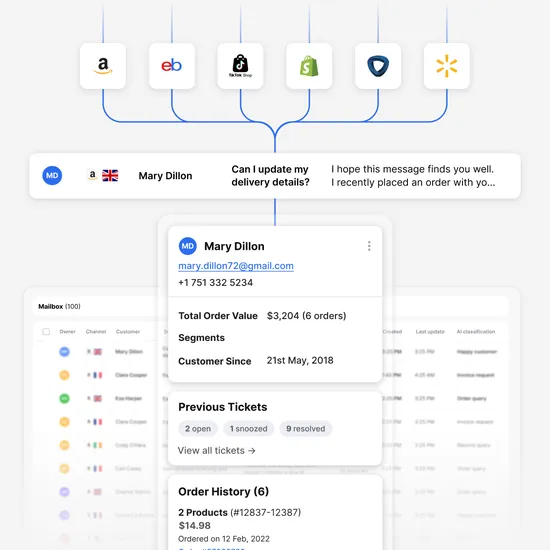
A shared Gmail inbox gives every message one place to land, but no order beside it. In eDesk, buyer emails become tickets and your team works them in one eCommerce helpdesk, in the same queue as your marketplace and social messages.
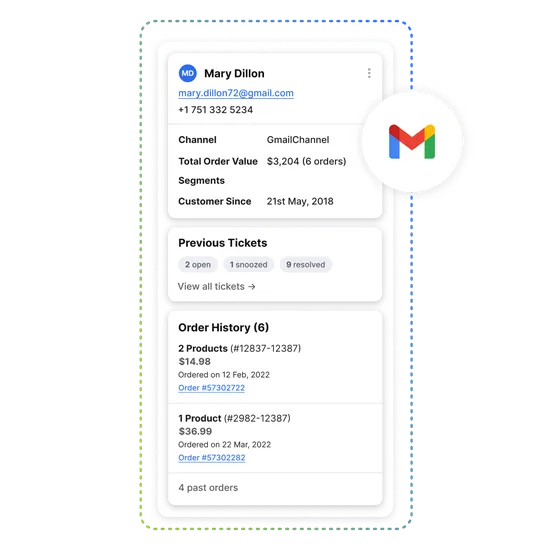
Order details sit beside the ticket, so an agent can check the order before replying. Agents can leave internal notes and @mention colleagues, and tickets can be assigned automatically. SLA timers are included on the Growth, Professional and Enterprise plans.
Choose which Gmail folders become tickets
Folder selection is the Gmail-specific control. During setup you can pick one Gmail folder. If you pick none, eDesk uses your Inbox. Switch on Include subfolders to bring in mail from the folders inside it. Point eDesk at the folder where your support mail lands, and other mail stays out of the support queue.
An Admin can change the folder later in Settings, Mailbox, Channels. The same screen holds the other Gmail settings: when emails are marked as read in Gmail, how many previous messages are quoted, whether a new email reopens a closed ticket and whether spam is included.
How to connect Gmail to eDesk
To set up the Gmail ticketing system you need an eDesk Admin login and a Gmail account. Then:
Open the App Store, click the Gmail tile and install the Gmail app.
Click Authorize eDesk, select the Gmail account you want to connect and grant the permissions.
Choose a Gmail folder, or leave it blank to use your Inbox, and decide whether to include subfolders.
Click Finish Setup. Emails from that folder then appear in the eDesk Mailbox.
The Connect Gmail guide covers each screen. If the direct connection is not possible, forward your email to a unique eDesk address using the Gmail forwarding setup. You can also browse all eDesk integrations.
Google sets limits on how much a Google Workspace account can send. Google's sending limits are 2,000 messages a day for each user account, and users cannot send new messages for up to 24 hours after reaching a limit. If your team replies at high volume, ask eDesk support how that fits your setup.
Sellers who moved their support from Gmail to eDesk
eDesk is rated 4.5 out of 5 on G2 and 4.4 out of 5 on Capterra.
Pertemba started out managing customer support in Gmail. Its story reports a second-line response team that went from 12 agents to just 7, 97.6% SLA compliance within a 24-hour timeframe and growth from 90 to 130 marketplaces. These figures describe Pertemba's move to eDesk overall, not the Gmail connection alone. Read the Pertemba story.
[Placeholder: a seller who connected Gmail to eDesk and kept using it. Interview with a Head of Customer Service, customer approval needed. Not yet captured.]
Frequently asked questions
Can I turn Gmail into a ticketing system?
Yes. Connect your Gmail account to eDesk and emails from the folder you choose become tickets in the Mailbox, while your emails keep arriving in Gmail. eDesk works as a Gmail ticketing system without a change of address.
Do I connect Gmail to eDesk directly or by forwarding?
Directly, in the standard setup. You install the Gmail app and click Authorize eDesk. Forwarding to a unique eDesk address is the fallback when the direct connection is not possible.
Will replies sent from eDesk show in my Gmail Sent folder?
The setup guide does not say, so ask eDesk support to confirm before you rely on it. The guide does cover how many previous messages are quoted in outgoing emails.
Can I connect more than one Gmail account?
Yes. eDesk says you can connect multiple Gmail accounts, and the setup guide has you select the Gmail account to connect each time you install the app.
Does eDesk import my old Gmail emails?
The guide says emails from your chosen folder appear after setup. It does not say whether older emails are imported or how far back, so ask eDesk support before you connect.
Explore eDesk
See how thousands of eCommerce sellers use eDesk to resolve support faster and increase sales.

Not just responding.Resolving.
Set up a Gmail ticketing system that keeps your address and shows the order beside every email. Your 14-day full-feature trial needs no credit card.
Discover more
WhatsApp
Elevate your customer support with native integrations to your webstore, marketplaces and social channels. eDesk was built from the ground up to support eCommerce sellers no matter where they sell.
- Social media
woocommerce
Do it all from one support tool, across multiple support channels. That’s eDesk at its core.
- Webstore
Magento
The ultimate help desk for Magento & Adobe Commerce entrepreneurs
- Automation & Management